
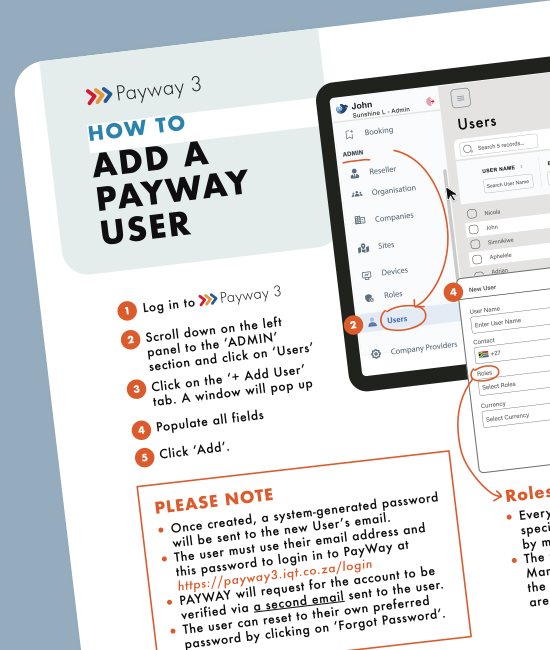
HOW TO… Add a new Payway User
POSTED ON: August 11, 2025 IN Newsby Nici
To add a new user with access to Payway for monitoring business operations, follow these steps…
———
HOW TO…
Add a new Payway User
STEP 1
Log in to Payway 3
STEP 2
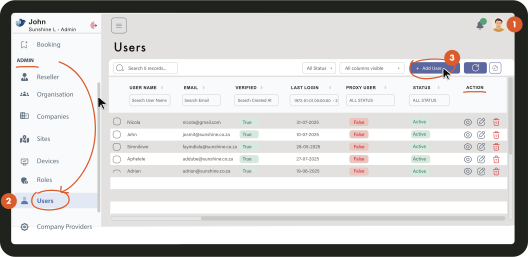
Scroll down on the left panel to ‘ADMIN’ and click on ‘Users’
STEP 3
Click on the ‘+ Add User’ tab. A window will pop up.
STEP 4
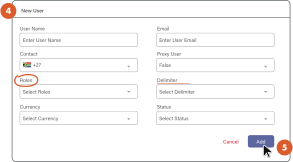
Populate all fields.
A note about ‘Roles’
• Every User requires a Role – this allows specific rights on Payway and can be used by multiple users.
• The Organization Admin (Laundry Owner/ Manager) is responsible for determining the Role or creating the User Role. There are pre-determined roles to select from.
STEP 5
Click ‘Add’.
PLEASE NOTE:
• Once created, a system-generated password will be sent to the new User’s email.
• The user must use their email address and this password to login in to PayWay.
• PAYWAY will request for the account to be verified via a second email sent to the user.
• The user can reset to their own preferred password by clicking on ‘Forgot Password’.
———
For support, please Contact us.
Share


